> For the complete documentation index, see [llms.txt](https://docs.keyfax.biz/llms.txt). Markdown versions of documentation pages are available by appending `.md` to page URLs; this page is available as [Markdown](https://docs.keyfax.biz/product-suite/keyfax-keynect/keynect-portal/customisation.md).
# Customisation
Learn more about customising your KeyNect settings and configuration.
## Customisation tab
This tab is only visible to a **Customer Admin** role.
In most cases, access to this page is really only needed as part of the initial set up to customise the wording and styling for desktop and mobile splash screens.
Below is a list of all fields within the tab.
Fields with an “\*” can only be edited by Omfax Support.
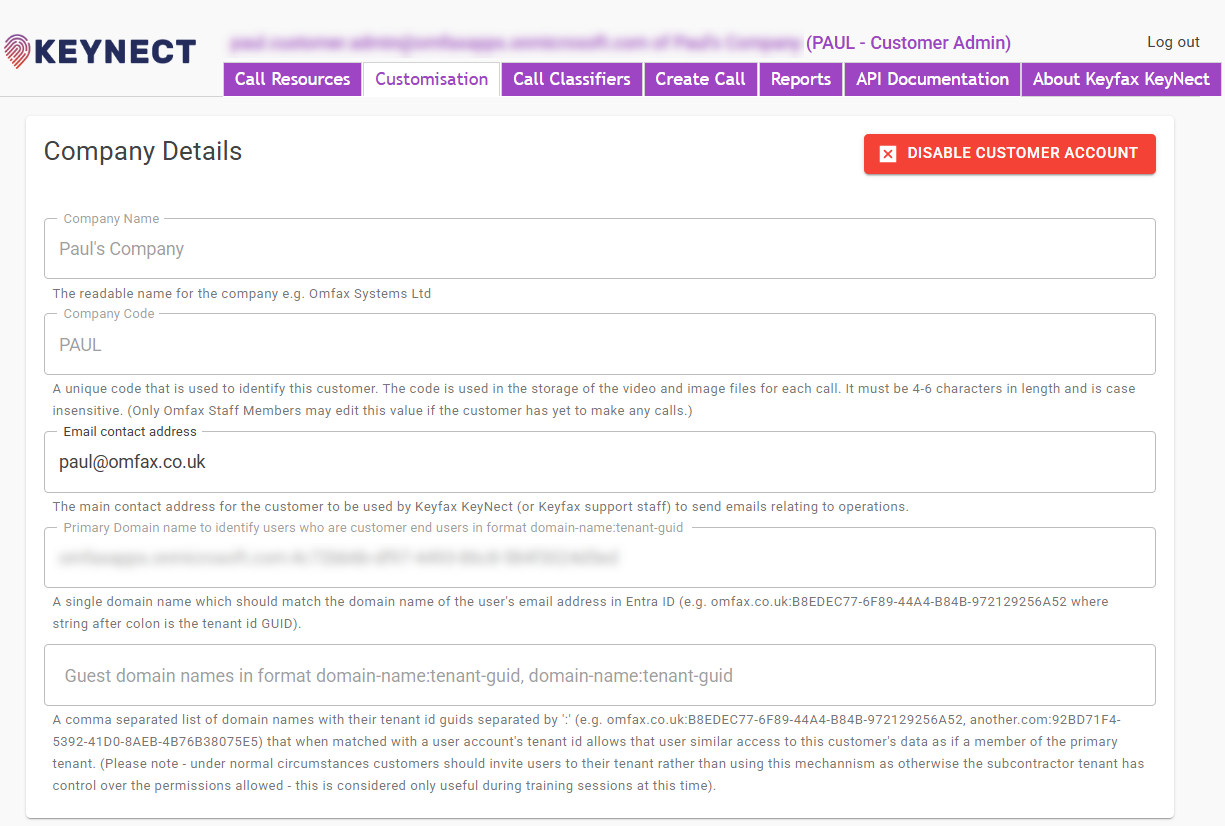
### Company Details
Details about the Company (Customer instance of KeyNect).
**Company Name\***
The name of the customer. Typically, you would only have one company set up, unless the there are multiple companies within the organisation that are using the same instance of KeyNect.
**Company Code\***
A unique code that is used to identify the customer. The code is used in the storage of the video and image files for each call. It must be 4-6 characters in length and is case insensitive.
**Email contact address**
The main email address for the customer to be used by KeyNect to send emails relating to operations – such as error reports etc.
**Primary Domain name to identify users who are customer end users\***
A single domain name which should match the domain name of the user’s email address in Entra ID (e.g. omfax.co.uk).
**Guest domain names in the format domain-name:tenant-guid,domain-name:tenant-guid \***
A comma separated list of domain names with their tenant ID guids separated by a ":". When matched with a user account's tenant ID allows that user similar access to this customer's data as if a member of the primary tenant.
{% hint style="info" %}
**Please note:** under normal circumstances, customer should invite users to their tenant rather than using this mechanism, as otherwise, the subcontractor tenant has control over the permissions allowed. This is considered only useful during training sessions at this time.
Omfax may use this field too with prior customer consent to enable access to assist with technical support queries.
{% endhint %}
### Video Call API And Permissions
API details used by KeyNect.
**API Key\***
The API Key required by the Keyfax configuration when setting up Video Call integration. This key should be a generated GUID and can be created on the windows command line using “powershell\[guid]::NewGuid()”.
**Data Retention Period\***
Any videos, images or video call resources found that are older than this number of days will be deleted (minimum setting is 1 day. Max 180 days).
Our recommended setting is 60 days as from a GDPR point of view the videos and images of the inside of people's homes are classed as 'sensitive' - so should only be kept for as long as they are needed, for example for the length it takes to complete the repair.
**KeyNect Video/Image Preview pop-up - hide the download option**
Hides the download buttons placed on each of the preview pop-up's call resource buttons. This reduces the likelihood that downloaded files will be shared via email.
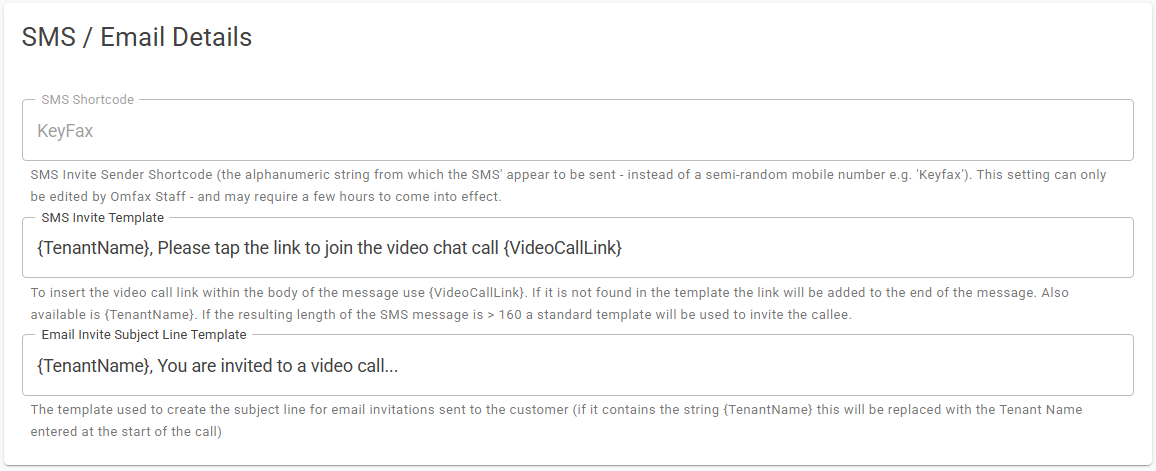
### SMS / Email Details
Details relating to the SMS/Email text sent to the tenant/callee.
**SMS Shortcode\***
SMS invite Sender Shortcode (the alphanumeric string which the SMS appear to be sent from – instead of a semi-random mobile number (e.g. “Keyfax”)). Changes to this field may take a few hours to come into effect.
**SMS Invite Template**
The wording used in the SMS or email sent to invite the callee to join the call.
To insert the ‘video call link’ within the body of the message use the following “{VideoCallLink}” command. If it is not found in the template the link will be added to the end of the message automatically. You can also use “{TenantName}” to pull through the recipient’s name that was used in the KeyNect portal or Keyfax.
If the resulting length of the SMS message exceeds 160 characters a standard template will be used to invite the callee. To monitor outgoing messages of this sort you can use the Report ‘SMS and Email Audit Log’.
**Email Invite Subject Line Template**
The template used to create the subject line for email invitations sent to the callee (if it contains the string “{TenantName}” this will be replaced with the tenant’s name entered when creating the call via KeyNect or Keyfax.
### Video Call UI
The settings affecting the user interface/experience for the desktop and mobile user.
**Uploaded Logo Filename**
Upload your own binary image (company logo) file here to have it placed on the video splash page for the desktop and mobile user.
**Mobile Splash Page – Introduction Text for Two Way calls**
The text displayed immediately under the logo welcoming the user and instructing them to allow microphone and/or camera access to the web page.
**Mobile Splash Page – Introduction Text for One Way Video calls**
The text displayed immediately under the logo welcoming the user and instructing them to allow microphone and/or camera access to the web page.
**Mobile Splash Page – Introduction Text for One Way Audio calls**
The text displayed immediately under the logo welcoming the user and instructing them to allow microphone and/or camera access to the web page.
**Mobile Splash Page – Privacy Policy (paste HTML here)**
This should normally be HTML markup. This data appears in the scrollable box on the splash page of the mobile app.
**Desktop Splash Page – Instructions HTML**
This should normally be HTML markup. This data appears for the desktop user only – intended to give instructions on how to guide the mobile user through starting the call.
**Mobile Splash Page - Consent toggle text**
The text displayed alongside the consent toggle/slider above the "Start the Video Call" button.
**Mobile Splash Page - "Start the Video Call" button**
The text on the "Start the Video Call" button at the bottom of the mobile splash page.
**The video app splash page foreground colour**
The colour used for text on the mobile and desktop versions of the video call app.
**The video app splash page background colour**
The colour used for the background on the mobile and desktop versions of the video call app.
**The video app video page background colour**
The colour used for the areas of the screen not displaying video on the desktop version of the app.
**The mobile devices app splash page’s foreground colour for the privacy policy window**
The colour used for text on the mobile splash page within the areas used to display the privacy policy for mobile device users.
**The video app splash page’s button colour for the mobile device**
The colour used for the buttons on the mobile device’s splash page.
**One way calls support**
Indicates if this customer supports one way calls (e.g. for ASB recording).
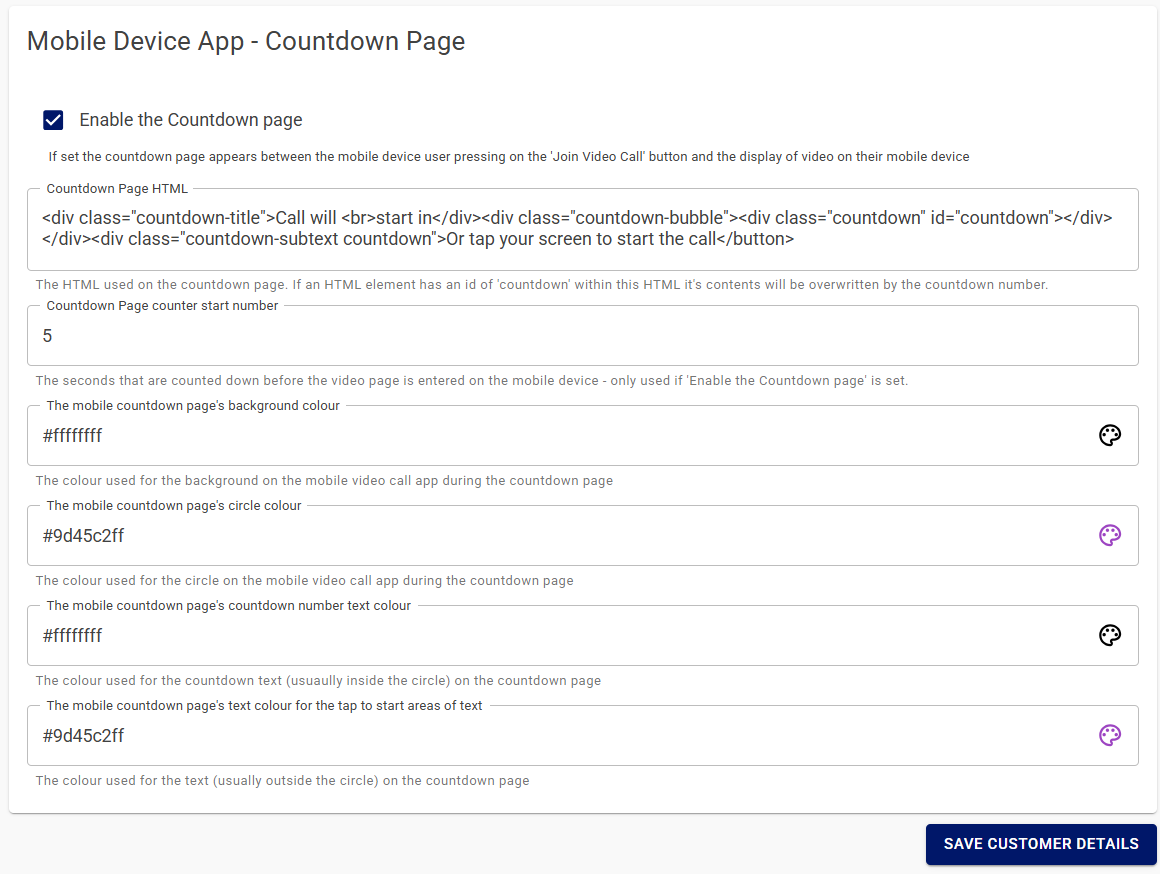
### Mobile Device App - Countdown Page
The settings for the countdown page on the mobile device. When the mobile user joins a call, they can be presented with a countdown timer to warn them when the video feed is about to start.
**Enable the Countdown page**
If ticked, the countdown page appears between the mobile device user pressing on the 'Join Video Call' button and the display of video on their mobile device.
**Countdown Page HTML**
The HTML used on the countdown page. If a HTML element has an id of “countdown” within this HTML it’s content will be overwritten by the countdown number. i.e. it will display the countdown timer.
**Countdown Page counter start number**
The seconds that are counted down before the video page is entered on the mobile device. Only used if “Enable the Countdown timer” is ticked.
**The mobile countdown page’s background colour**
The colour used for the background on the mobile video call app during the countdown page.
**The mobile countdown page’s circle colour**
The colour used for the circle on the mobile video call app during the countdown page.
**The mobile countdown page’s countdown number text colour**
The colour used for the countdown text (usually inside the circle) on the countdown page.
**The mobile countdown page’s text colour for the “tap to start” areas of text**
The colour used for the text (usually outside the circle) on the countdown page.